



00 / MEET YOUR TEAM
One workspace. A whole team.
Create Bots with clear roles. Bring them into a group chat. Turn a shared goal into work you can follow, shape and review.
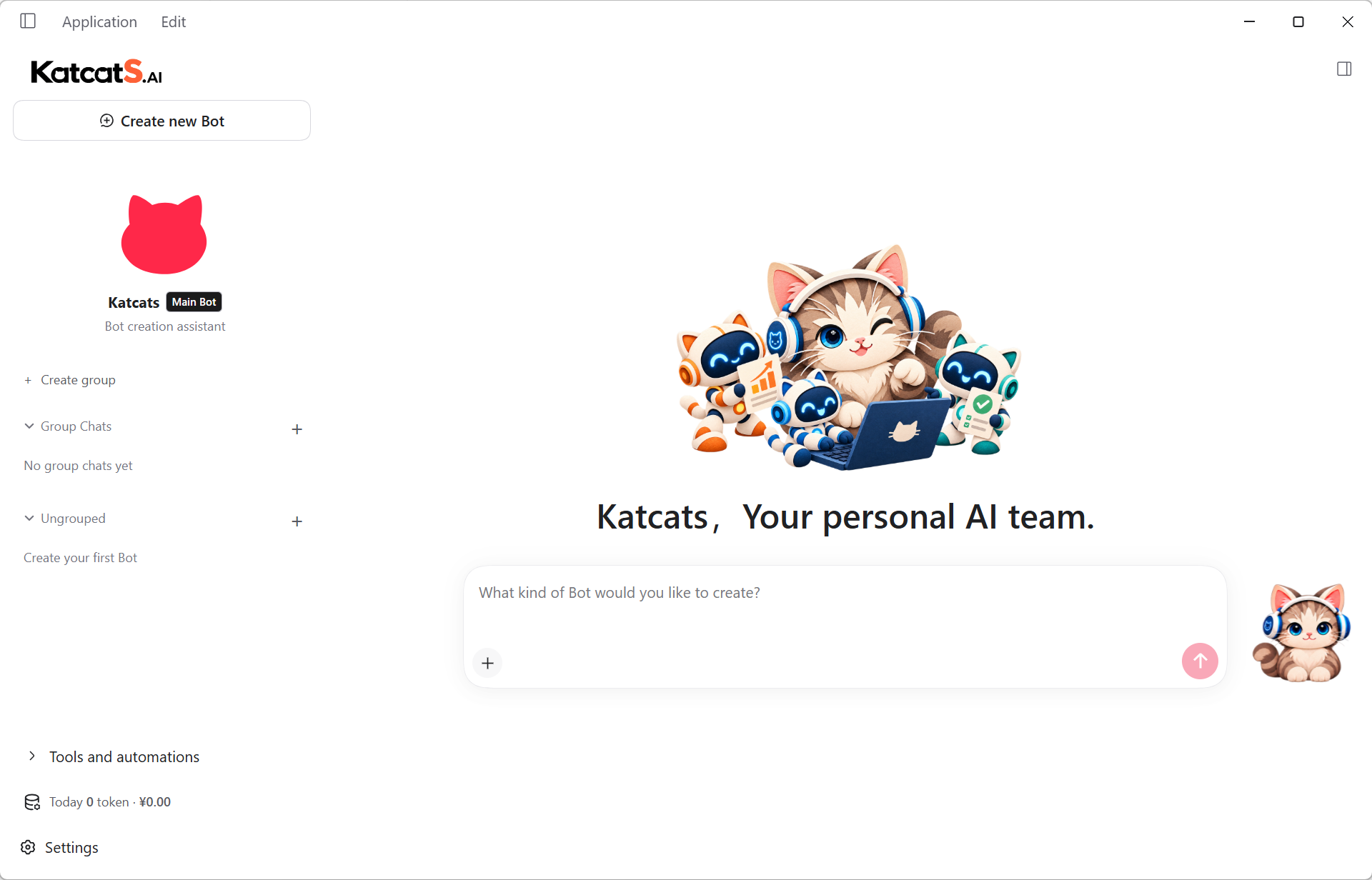
The main Bot
Talk to Katcats to create and configure the members you need.
Your Bots
Give each member a responsibility. Chat privately for focused work.
Group chats
Bring ordinary Bots together around one shared task.
01 / GET CONNECTED
Start with a model.
- Install Katcats.
Get the Windows 10 / 11 x64 installer from the download page and open the app.
- Connect your provider.
Use the first-run setup, or open Settings → Models. Add your model provider and API Key, then choose a global base model.
- Start a conversation.
Send a short message to the main Katcats Bot to check that your model is connected before building the team.
02 / CREATE YOUR BOTS
A name. A face. A place on the team.
Click Create new Bot in the left sidebar. Give it a recognizable name, choose an avatar shape and color, then click Create.
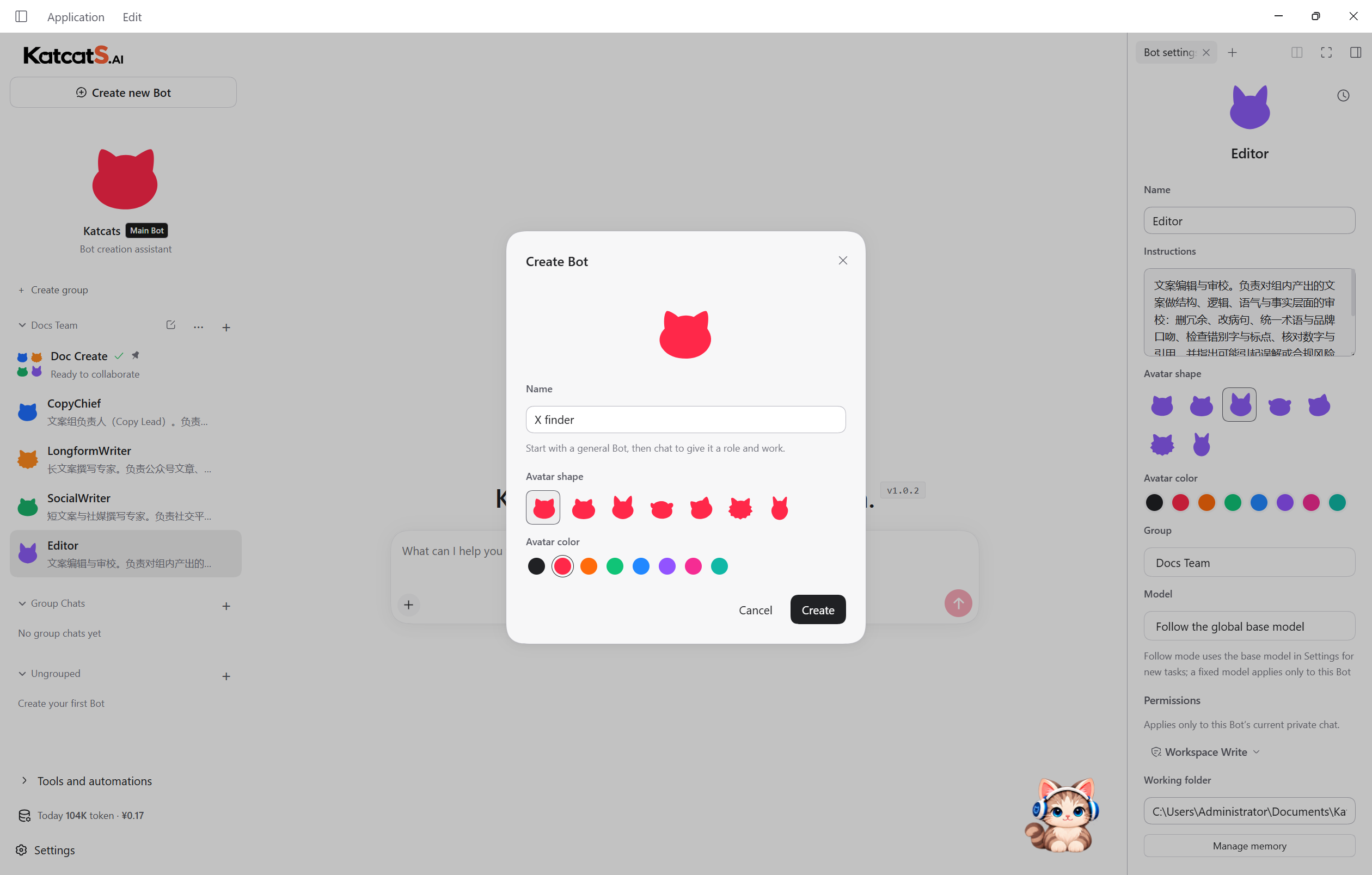
You can also ask the main Bot to create the team for you. Try this:
Create four Bots: a researcher, a writer, a reviewer and a delivery coordinator. Give each a clear responsibility and a different avatar color.
03 / DEFINE THEIR ROLES
Clear roles make better teammates.
Select a Bot and open Bot settings on the right. Close any Create Bot dialog before editing the settings panel.
- Instructions
- Describe its job, the references it should use and the output you expect. Define what it should check before handing work over.
- Model
- Follow the global base model, or choose a model for this Bot.
- Permissions
- Grant only the access needed for its private conversation. Review the working folder before allowing file changes.
- Memory
- Keep useful context in saved memory entries for Bots, groups or the team. Review what is saved before reusing sensitive information.
04 / BUILD A GROUP
Different strengths. One shared goal.
Click + beside Group Chats, name the group and select ordinary Bot members. Choose a manager if you want one member to coordinate the work.
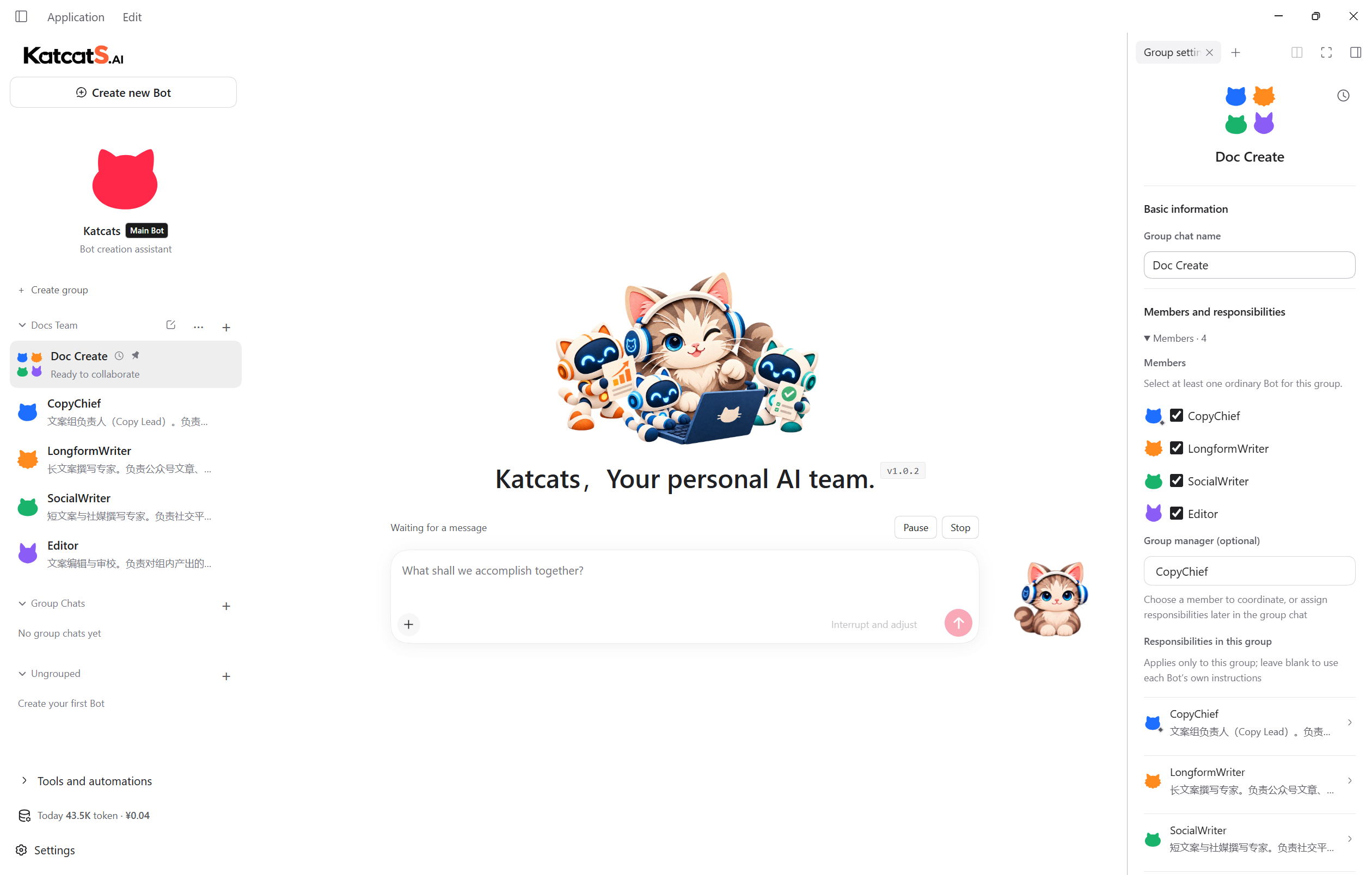
05 / WORK TOGETHER
Make the brief worth sharing.
Tell the group what you need, which materials to use and what a good result looks like. Be specific about the final format and any constraints.
Use the notes I provide to draft a product introduction. Researcher: organize the facts. Writer: draft the copy. Reviewer: flag unsupported claims. Coordinator: collect the final version and list anything that still needs my approval.
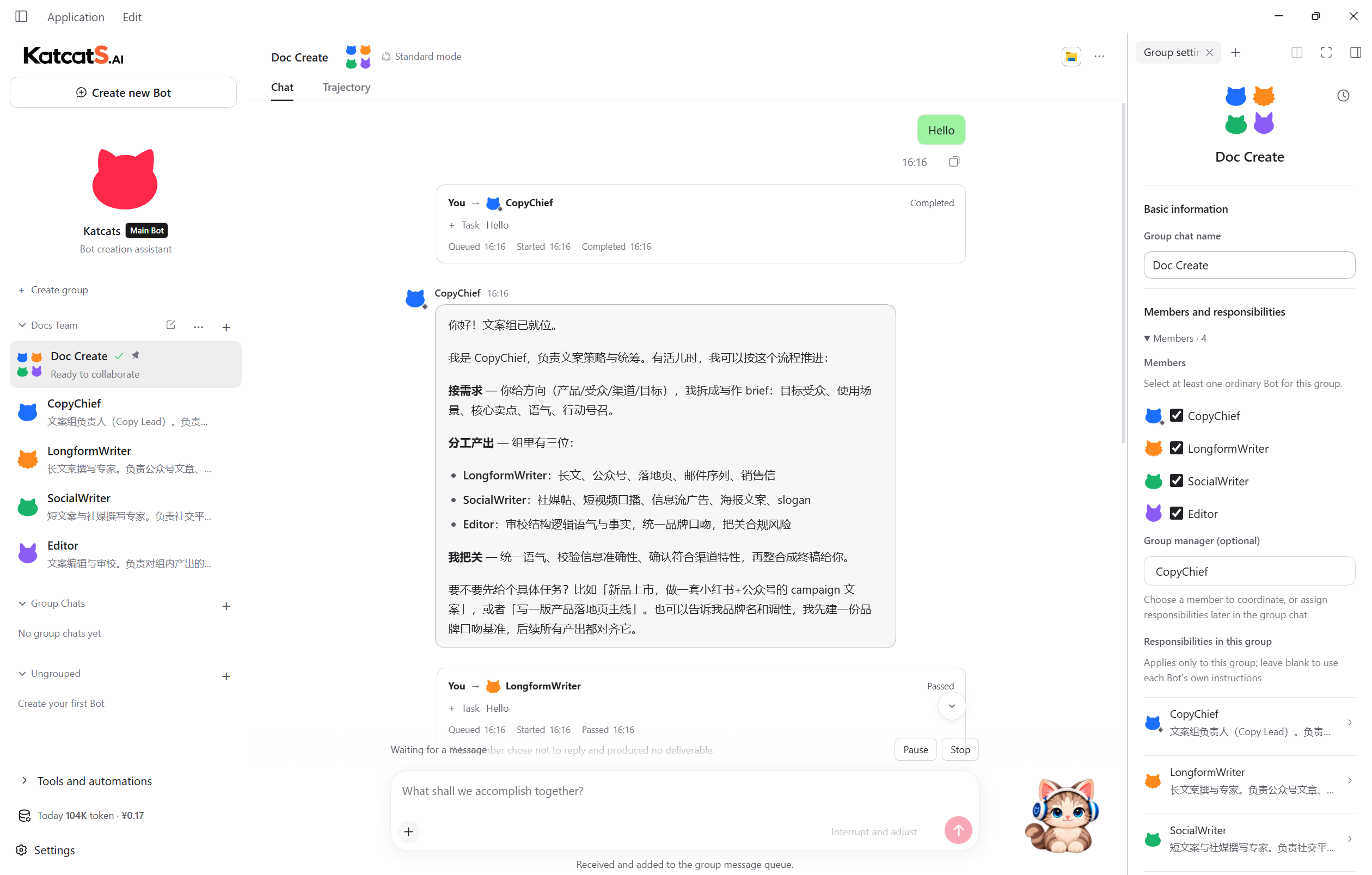
Follow the member names and handoff records to see who is responding. A Completed record describes an individual member task, not approval of the entire result. Read the final replies and open any delivered file cards to review the work yourself.
06 / STAY IN CONTROL
You set the direction.
- Send a follow-up
- A normal message joins the queue while active work continues.
- Pause / Continue
- Pause holds new tasks while active work can finish. Continue resumes the run.
- Interrupt and adjust
- Choose this explicitly when you need to interrupt current work and change its direction.
- Stop
- Cancel the run. This does not undo actions that have already completed.
My Bot is not responding. What should I check?
Check the provider and API Key in Settings → Models, the selected model, your network connection and your provider balance. Check whether the run is paused before sending the task again.
Can I hide task and handoff records?
Yes. Turn them off in group settings to focus on messages and member replies. Delivered file cards remain available.
How do I report a problem?
Include the app version, steps to reproduce and a screenshot with private information removed. Do not share API Keys or private conversations. Report an issue